Jupyter Book 2 is centered around creating interactive online documents. However, there are several instances when a PDF, next to the online book, is desired, for example:
for use in note taking applications (e.g., students annotating a textbook chapter, or reviewing the draft of a website),
if a printed copy of the book is required,
to more easily carry out a plagiarism check.
One of the strengths of Jupyter Book 2 is the ease with which high-quality PDF’s can be created from the same source files as an online book. To accomplish this, a template is used to create a PDF with a consistent look and feel between the two document formats. In addition, such templates can be customized to fit the specific needs of the documents being created.
This exercise provides an overview the PDF output capabalities of the Jupyter Book 2 and MyST ecosystem, accompanied by exercises to get you started creating your own PDF output (with Typst) using two different templates.
PDF Generation: Typst and LaTeX
Jupyter Book 2 currently supports two primary ways to export your book as a PDF: LaTeX or Typst. Both are powerful tools for generating high-quality PDFs, but they differ in several key aspects (additional advantages and disadvantages described here):
| Feature | Typst | LaTeX |
|---|---|---|
| Ease of Use | Modern syntax, easier to learn and use | Steeper learning curve, more complex syntax |
| Speed | Fast compilation | Slower compilation, especially for large docs |
| Customization | Templates are easy to modify | Highly customizable, but requires more effort |
| Integration | Designed for MyST Markdown and Jupyter Book | Widely supported in academic publishing |
| Community | Growing, newer ecosystem | Large, established community |
| Features | Good support for math, figures, and tables | Extensive support for math, figures, tables, and packages |
| Output Quality | High-quality, modern look | Professional, traditional academic look |
In short: choose Typst for simplicity and speed, or LaTeX for advanced customization and compatibility with academic standards.
Below we provide the screen shots of the PDF output using Typst (left) using the plain
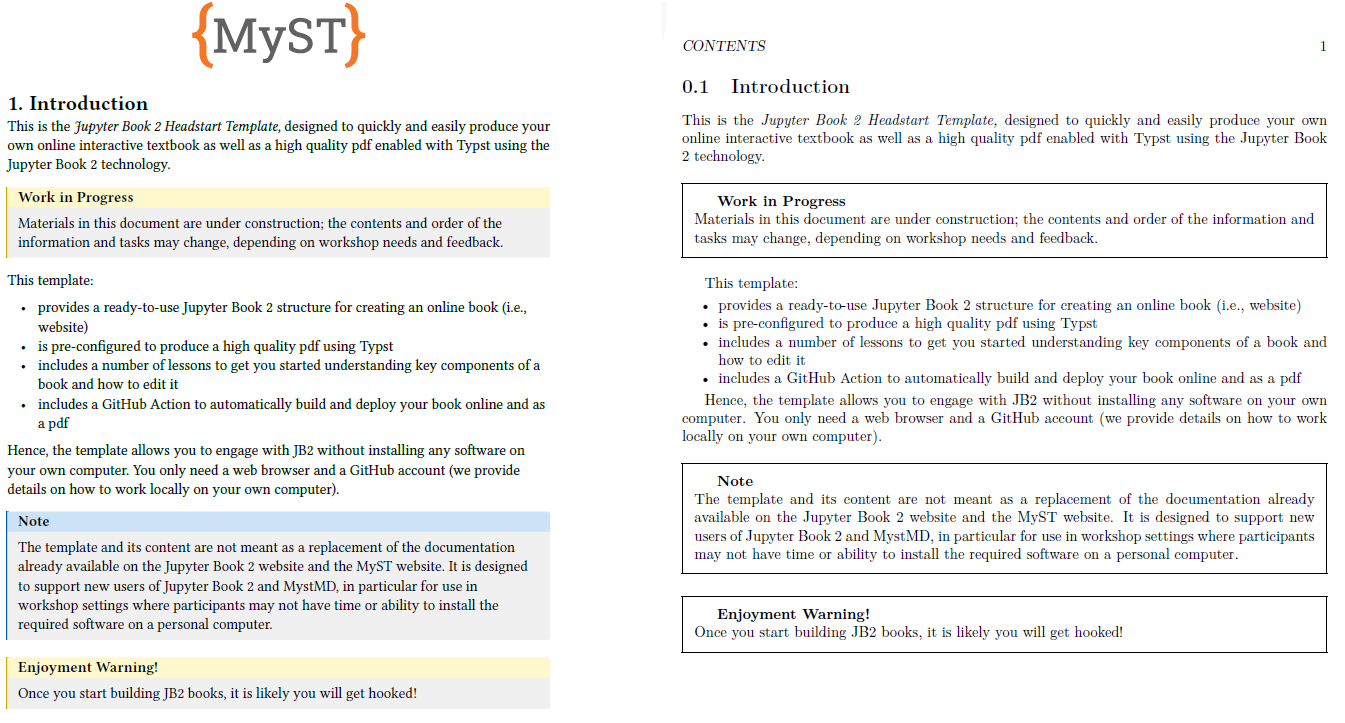
Figure 1:Comparison of PDF output using Typst (left) and LaTeX (right) using both the plain book template.
You can specify the output template, download the template and tweak to match your preferences. We won’t go into detail here, but you can find more information in the MyST Markdown documentations.
Considerations
When starting your own project, consider whether a PDF output is desired. If so, consider the interactive elements that may be included and wether or not, some functionality and not all multimedia are supported in a PDF. For instance, a *.gif file cannot be included in a PDF. JB2 is thoughtful in this by choosing the best possible alternative if multiple files with the same name but different extensions are present: gif is chosen over png, png over jpg. Rather than specifying the extension, you can just use the file name and an asterisk, e.g. .
For YouTube clips and online interactive materials embedded through iframes, you can make use of plugins. See for instance the iframe-to-thumbnail plugin. This plugin replaces the iframe with a thumbnail image that links to the original content as well as a QR code and a link in the caption.
Export through GitHub actions or locally
We specified in the myst.yml file that we want to export to PDF using Typst.
You can also choose LaTeX.
See the myst.yml file, or Program 1 for the syntax.
27 28 29 30 31 32 33 34 35exports: - format: typst template: https://github.com/myst-templates/plain_typst_book.git output: exports/book.pdf id: output-pdf cover: content/figures/logo.svg logo: content/figures/logo.svg logo_width: 5 ToC_depth: 2
Program 1:Example of the export section in the myst.yml file, the book will be written to exports/book.pdf.
Local build
When both myst and typst are installed, you can build the PDF locally using the command line:
myst build --typstThe book will be built in the exports directory as specified in the myst.yml file and the build files will be in the _build directory.
GH actions
Building and including your PDF is possible through a GitHub action that automatically builds the PDF when you push changes to GitHub. This has both is pros and cons. For instance, the build of your PDF is done prior to the build of your book. If there is an error in your book, the PDF AND your book will not be built. On the other hand, you do not need to install anything locally and the PDF is always up to date when you push changes.
There is a third option where you have a separate PDF build github action that only builds the PDF when you push to a specific branch, e.g. main or release or when you initialize the workflow yourselves.
    # Install Typst for PDF generation
    - name: Install Typst
      run: |
        typst --version

    # Build the PDF using Typst
    - name: Build PDF
      run: |
        myst build --typst
Excluding and including sections for PDF[1]
If you need to inject some LaTeX or Typst-specific content into their respective exports, you may use the {raw:latex} or {raw:typst} role and directive. For example, to insert a new page in Typst with two columns:
Or,
+++ { "page-break": true } for a page break.
The content in these directives and roles will be included exactly as written in their respective exports, and will be ignored in all other contexts.
You may use block metadata to insert page breaks into your PDF or docx export with +++ { “page-break”: true }. This will have no impact on your MyST site build nor other static exports that disregard “pages” (e.g. JATS).
This won’t be in the PDF.
Configure PDF output
Typst
When exporting to Typst format, you can provide Typst-specific math content using the typst option. This allows you to use native Typst syntax instead of relying on tex-to-typst conversion, which may give incorrect results.
Example with typst argument in a math block:
https://
Directly copied from the official Myst documentation.